


Switching hands in CS2 takes about five seconds. Press H and your weapon flips sides. That's the short answer. But if you want it on a specific key, set as a permanent default, or understand why it actually matters beyond looking different — keep reading.
How to Switch Hands in CS2
There are four ways to do this. I'll cover each one so you can pick what fits your setup.
Method 1: Press the Default Key (H)
The fastest option. During any match or practice session, press H and your weapon model flips to the opposite side. Press again, it flips back.
Valve added this shortcut when they re-introduced left-hand viewmodels in a CS2 update. It works out of the box — no console, no config files, nothing extra required.
Method 2: Use Console Commands (cl_righthand)
Open the developer console (press ~ or enable it under Settings > Game) and type:
cl_righthand 0— weapon moves to the left handcl_righthand 1— weapon moves to the right hand (the default)
There are also named commands if you prefer clarity over brevity:
switchhandsleft— switches to left handswitchhandsright— switches to right hand
Hit Enter and the change is instant. Veterans from CS:GO will recognize cl_righthand — it's been the same command for years.
Method 3: Create a Custom Toggle Bind
This is the method most experienced players end up using. Open the console and type:
bind "v" "toggle cl_righthand 0 1"
Swap out v for whatever key you want. Every press toggles between left and right. A mouse side button works really well here — you can flip hands without moving your fingers off WASD. If H is already doing something in your config, this is how you move hand switching somewhere else.
Method 4: Change Your Default Hand in Settings
Want to always spawn with your weapon on a specific side? Set it permanently:
- Open CS2 and go to Settings.
- Go to the Game tab and find the Viewmodel section.
- Look for Preferred Viewmodel Left/Right Handedness.
- Pick Left or Right.
This sticks across all matches. You can still toggle mid-game with any method above — this just sets where you start.
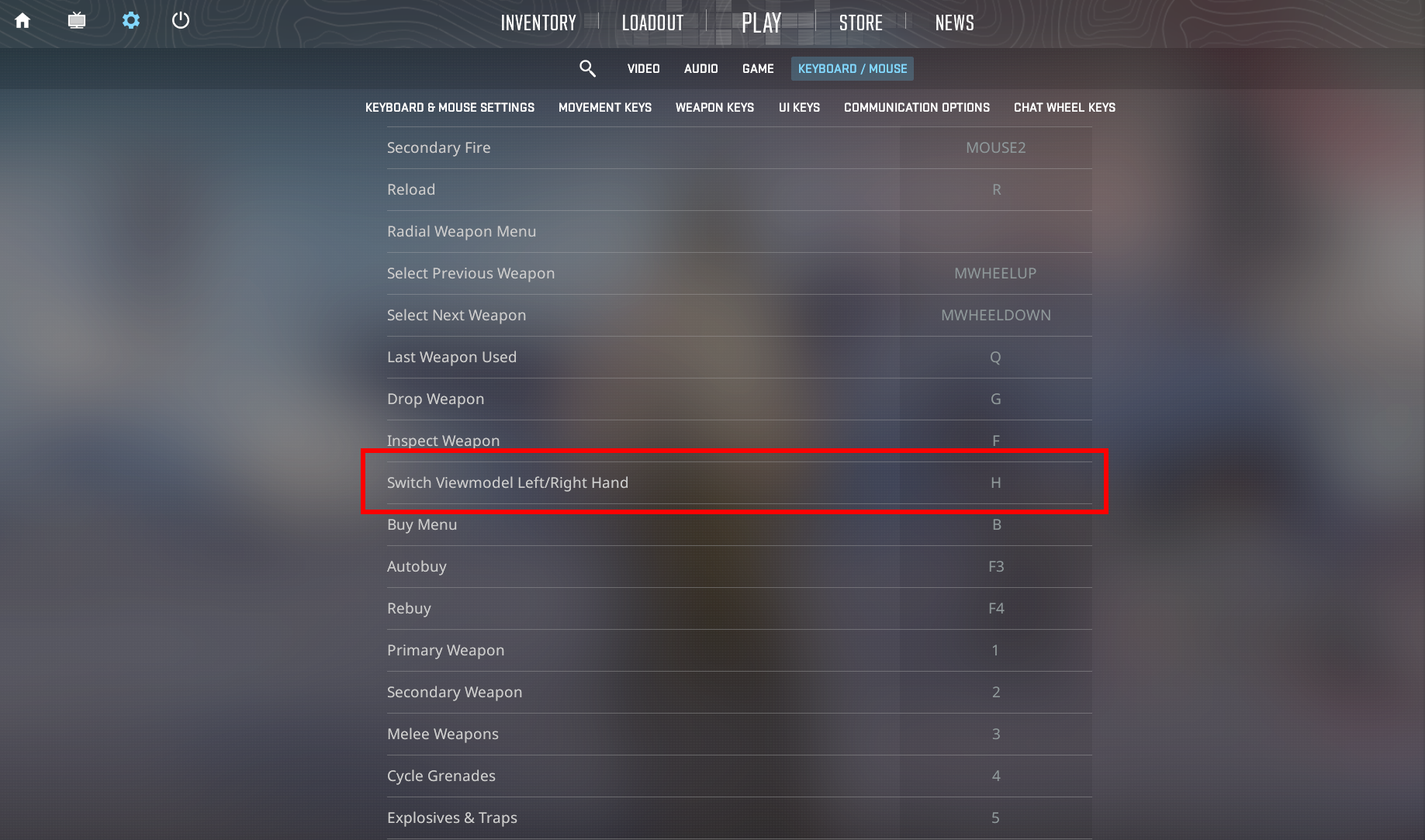
How to Customize Your Hand Switch Keybind
If H doesn't work for you, rebinding takes thirty seconds:
- Go to Settings > Keyboard/Mouse.
- Scroll to Switch Viewmodel Left/Right.
- Click the current binding, press your new key.
- Done.
Many players move this to a thumb button on their mouse. The logic is simple — your thumb isn't doing much during normal play, so an idle button is a good home for something situational like hand switching. If you're doing a broader settings overhaul, check out best launch options for CS2 while you're at it.
Why Switch Hands? The Actual Reasons
Plenty of players discover this setting and assume it's just aesthetic. It's not, at least not entirely.
Better Visibility When Peeking Corners
Your weapon model blocks part of your screen. Peeking a right-side corner with the gun on the right hides exactly the area you need to see. Flip the weapon left and that sightline opens up. Left-side corners work the other way.
Players who bind a quick toggle can adapt mid-round depending on the angle. Holding a right-side peek? Weapon left. Rotating to a left-side hold? Weapon right. It sounds like a small thing until you start actually noticing how much the model obstructs your vision.
Eye Dominance and Comfort
Most people have a dominant eye — the one your brain leans on when both eyes can't agree on what they're seeing. Right-eye-dominant players sometimes prefer a left-hand viewmodel because the weapon sits away from their dominant visual field, reducing clutter in the area they process fastest. Left-handed players often switch purely because the left-hand model feels more natural.
There's no objectively correct setup here. The goal is reducing visual interference where it matters most for you specifically.
Tactical Advantage on Specific Map Positions
Some positions genuinely favor one hand over the other. Holding B tunnels on Dust II from the right side tends to be cleaner with a left-hand viewmodel. Watching long doors from A platform often feels better with the weapon on the right. If you play the same maps regularly, it's worth walking through key positions in a private server and testing both sides — after a few sessions you'll have a clear instinct for what's cleaner where.
Want to work on other aspects of your game while you're at it? Our guide on how to be a happier and better-performing CS2 player covers a lot more ground than just settings.
A Fresh Look at Your Skins
Switching hands mirrors the viewmodel — which means your skins look noticeably different on the left-hand version. Some finishes show off textures or wear patterns that the default angle hides. If you've put money into your loadout, it's worth seeing what your skins look like from both sides. Our CS2 skin showcase guide has more ideas for building an inventory worth admiring.
Does Switching Hands Affect Aim or Hitboxes?
No. Full stop.
Switching hands is a client-side visual change. Your character model, hitboxes, and bullet trajectory stay identical regardless of which side the weapon appears on. Nothing competitive changes. The server doesn't care.
One thing to know: when you switch hands mid-game, your weapon briefly goes through a re-equip animation — similar to switching weapons. During that moment, you can't fire. It's a fraction of a second, but don't toggle when an enemy is about to appear. Do it during rotations or when you have a safe moment behind cover.
Do Pro Players Switch Hands?
Yes — some actively toggle depending on which angle they're holding. Others play exclusively with a left-hand viewmodel for entire matches. A few don't bother at all. There's no consensus in the pro scene because the right answer depends on the player's dominant eye, muscle memory, and specific positioning habits.
If you're curious what else the pros are doing, our breakdown of CS2 pro player skins in tournaments shows what the top players are running in competition.
Pro Tips for Actually Using This Well
Practice in deathmatch before relying on it. The first few times you toggle mid-fight you'll hesitate. That hesitation goes away with reps — but it needs reps in lower-stakes situations first.
Map out the key positions. Spend one or two sessions in a private server walking through your most-played map and testing corners from both hand positions. Write down which spots benefit from which hand if you have to. After a week of real matches it'll be automatic.
Never switch when under threat. The re-equip delay is short but real. Peeking a corner and toggling at the same moment is asking to die. Reserve hand switches for rotations or when you're safely behind cover and know you have a second.
Try left-hand for a full week before writing it off. If you've never played with the weapon on the left, commit to it for seven days before deciding it doesn't work. Most players who switch dismiss it after twenty minutes. The adaptation period is longer than that — and a lot of people end up preferring it.
Switching hands also gives you a chance to see your weapon skins from a different angle — and the mirrored view can reveal details you'd never noticed. It's worth thinking about alongside skin conditions and wear values if you care about how specific finishes look in-game.
Frequently Asked Questions
What is the CS2 left hand command?
cl_righthand 0 in the developer console. That moves your weapon to the left side. cl_righthand 1 brings it back to the default right.
Can I bind hand switching to a mouse button?
Yes. In the console: bind "mouse4" "toggle cl_righthand 0 1" — replace mouse4 with whichever button you want. A side mouse button is usually the cleanest option since it doesn't interfere with movement keys.
Does the left hand viewmodel mirror my skin?
It does. The entire weapon model flips, including any skin or stickers you have applied. It's visual only and has no effect on gameplay. Some players enjoy checking how their best-looking CS2 skins look from the opposite angle.
Is there a way to auto-switch hands based on movement direction?
No built-in option exists. Scripts that try to automate this based on movement could also raise flags with anti-cheat systems. Manual toggling is the way to go — it's safe, it's reliable, and it takes maybe a week to become second nature.
Conclusion
Press H, type cl_righthand 0, or set up a toggle bind — whichever method you pick takes under a minute to configure. The bigger investment is learning when to actually use it: which corners open up with the weapon on the left, which positions feel cleaner on the right, and building the habit of switching during rotations rather than mid-fight.
Start with the default H key, spend a week noticing which angles benefit from a flip, and go from there.